Wednesday, November 28, 2018

Python - Tuples

A tuple is a sequence of immutable Python objects. Tuples are sequences, just like lists. The differences between tuples and lists are, the tuples cannot be changed unlike lists and tuples use parentheses, whereas lists use square brackets.

Creating a tuple is as simple as putting different comma-separated values. Optionally you can put these comma-separated values between parentheses also. For example −

tup1 = ('physics', 'chemistry', 1997, 2000);tup2 = (1, 2, 3, 4, 5 );tup3 = "a", "b", "c", "d";
The empty tuple is written as two parentheses containing nothing −

tup1 = ();
To write a tuple containing a single value you have to include a comma, even though there is only one value −

tup1 = (50,);
Like string indices, tuple indices start at 0, and they can be sliced, concatenated, and so on.

Accessing Values in Tuples
To access values in tuple, use the square brackets for slicing along with the index or indices to obtain value available at that index. For example −

 Live Demo
#!/usr/bin/python

tup1 = ('physics', 'chemistry', 1997, 2000);
tup2 = (1, 2, 3, 4, 5, 6, 7 );
print "tup1[0]: ", tup1[0];
print "tup2[1:5]: ", tup2[1:5];
When the above code is executed, it produces the following result −

tup1[0]:  physics
tup2[1:5]:  [2, 3, 4, 5]
Updating Tuples
Tuples are immutable which means you cannot update or change the values of tuple elements. You are able to take portions of existing tuples to create new tuples as the following example demonstrates −

 Live Demo
#!/usr/bin/python

tup1 = (12, 34.56);
tup2 = ('abc', 'xyz');

# Following action is not valid for tuples
# tup1[0] = 100;

# So let's create a new tuple as follows
tup3 = tup1 + tup2;
print tup3;
When the above code is executed, it produces the following result −

(12, 34.56, 'abc', 'xyz')
Delete Tuple Elements
Removing individual tuple elements is not possible. There is, of course, nothing wrong with putting together another tuple with the undesired elements discarded.

To explicitly remove an entire tuple, just use the del statement. For example −

 Live Demo
#!/usr/bin/python

tup = ('physics', 'chemistry', 1997, 2000);
print tup;
del tup;
print "After deleting tup : ";
print tup;
This produces the following result. Note an exception raised, this is because after del tup tuple does not exist any more −

('physics', 'chemistry', 1997, 2000)
After deleting tup :
Traceback (most recent call last):
   File "test.py", line 9, in <module>
      print tup;
NameError: name 'tup' is not defined
Basic Tuples Operations
Tuples respond to the + and * operators much like strings; they mean concatenation and repetition here too, except that the result is a new tuple, not a string.

In fact, tuples respond to all of the general sequence operations we used on strings in the prior chapter −

Python Expression Results Description
len((1, 2, 3)) 3 Length
(1, 2, 3) + (4, 5, 6) (1, 2, 3, 4, 5, 6) Concatenation
('Hi!',) * 4 ('Hi!', 'Hi!', 'Hi!', 'Hi!') Repetition
3 in (1, 2, 3) True Membership
for x in (1, 2, 3): print x, 1 2 3 Iteration
Indexing, Slicing, and Matrixes
Because tuples are sequences, indexing and slicing work the same way for tuples as they do for strings. Assuming following input −

L = ('spam', 'Spam', 'SPAM!')


Python Expression Results Description
L[2] 'SPAM!' Offsets start at zero
L[-2] 'Spam' Negative: count from the right
L[1:] ['Spam', 'SPAM!'] Slicing fetches sections
No Enclosing Delimiters
Any set of multiple objects, comma-separated, written without identifying symbols, i.e., brackets for lists, parentheses for tuples, etc., default to tuples, as indicated in these short examples −

 Live Demo
#!/usr/bin/python

print 'abc', -4.24e93, 18+6.6j, 'xyz';
x, y = 1, 2;
print "Value of x , y : ", x,y;
When the above code is executed, it produces the following result −

abc -4.24e+93 (18+6.6j) xyz
Value of x , y : 1 2

Monday, November 19, 2018

Scan PDF using Python -Python module for converting PDF to text

All of you must be familiar with what PDFs are. In-fact, they are one of the most important and widely used digital media.  PDF stands for Portable Document Format. It uses .pdf extension. It is used to present and exchange documents reliably, independent of software, hardware, or operating system.
Invented by Adobe, PDF is now an open standard maintained by the International Organization for Standardization (ISO). PDFs can contain links and buttons, form fields, audio, video, and business logic.

In the below Example we are just extracting my Airtel Receipt text from PDF with the help ofPython lib "PyPDF2"

Code:


import PyPDF2

pdf=PyPDF2.PdfFileReader(open("C:\MY\Airtel Bill\PaymentReceiptforAirtelAccount.pdf", "rb"))

for page in pdf.pages:

print (page.extractText())


Output:


Monday, November 12, 2018

Read Data from Outlook using Python

When you start e-mail marketing , You need opt-in email address list. You have opt-in list. You are using email client software and If you can export your list from your email client, You will have good list.
Now I am trying to explain my codes to write all emails into test file from your outlook profile.
First you should import win32com.client, You need to install pywin32
pip install pywin32

when you start e-mail marketing , You need opt-in email address list. You have opt-in list. You are using email client software and If you can export your list from your email client, You will have good list.
Now I am trying to explain my codes to write all emails into test file from your outlook profile.
First you should import win32com.client, You need to install pywin32
pip install pywin32

We should connect to Outlook by MAPI
outlook = win32com.client.Dispatch("Outlook.Application").GetNamespace("MAPI")

Then we should get all accounts in your outlook profile.
accounts= win32com.client.Dispatch("Outlook.Application").Session.Accounts;

Then You need to get emails from inbox folder that is named emailleri_al.
def emailleri_al(folder):
    messages = folder.Items
    a=len(messages)
    if a>0:
        for message2 in messages:
             try:
                sender = message2.SenderEmailAddress
                if sender != "":
                    print(sender, file=f)
             except:
                print("Ben hatayım")
                print(account.DeliveryStore.DisplayName)
                pass

             try:
                message2.Save
                message2.Close(0)
             except:
                 pass


You should go to all account and get inbox folder and get emails
for account in accounts:
    global inbox
    inbox = outlook.Folders(account.DeliveryStore.DisplayName)
    print("****Account Name**********************************",file=f)
    print(account.DisplayName,file=f)
    print(account.DisplayName)
    print("***************************************************",file=f)
    folders = inbox.Folders

    for folder in folders:
        print("****Folder Name**********************************", file=f)
        print(folder, file=f)
        print("*************************************************", file=f)
        emailleri_al(folder)
        a = len(folder.folders)

        if a>0 :
            global z
            z = outlook.Folders(account.DeliveryStore.DisplayName).Folders(folder.name)
            x = z.Folders
            for y in x:
                emailleri_al(y)
                print("****Folder Name**********************************", file=f)
                print("..."+y.name,file=f)
                print("*************************************************", file=f)

All Code is as the following
import win32com.client
import win32com
import os
import sys

f = open("testfile.txt","w+")

outlook = win32com.client.Dispatch("Outlook.Application").GetNamespace("MAPI")
accounts= win32com.client.Dispatch("Outlook.Application").Session.Accounts;

def emailleri_al(folder):
    messages = folder.Items
    a=len(messages)
    if a>0:
        for message2 in messages:
             try:
                sender = message2.SenderEmailAddress
                if sender != "":
                    print(sender, file=f)
             except:
                print("Error")
                print(account.DeliveryStore.DisplayName)
                pass

             try:
                message2.Save
                message2.Close(0)
             except:
                 pass


for account in accounts:
    global inbox
    inbox = outlook.Folders(account.DeliveryStore.DisplayName)
    print("****Account Name**********************************",file=f)
    print(account.DisplayName,file=f)
    print(account.DisplayName)
    print("***************************************************",file=f)
    folders = inbox.Folders

    for folder in folders:
        print("****Folder Name**********************************", file=f)
        print(folder, file=f)
        print("*************************************************", file=f)
        emailleri_al(folder)
        a = len(folder.folders)

        if a>0 :
            global z
            z = outlook.Folders(account.DeliveryStore.DisplayName).Folders(folder.name)
            x = z.Folders
            for y in x:
                emailleri_al(y)
                print("****Folder Name**********************************", file=f)
                print("..."+y.name,file=f)
                print("*************************************************", file=f)


print("Finished Succesfully")
outlook = win32com.client.Dispatch("Outlook.Application").GetNamespace("MAPI")

Then we should get all accounts in your outlook profile.
accounts= win32com.client.Dispatch("Outlook.Application").Session.Accounts;

Then You need to get emails from inbox folder that is named emailleri_al.
def emailleri_al(folder):
    messages = folder.Items
    a=len(messages)
    if a>0:
        for message2 in messages:
             try:
                sender = message2.SenderEmailAddress
                if sender != "":
                    print(sender, file=f)
             except:
                print("Ben hatayım")
                print(account.DeliveryStore.DisplayName)
                pass

             try:
                message2.Save
                message2.Close(0)
             except:
                 pass


You should go to all account and get inbox folder and get emails
for account in accounts:
    global inbox
    inbox = outlook.Folders(account.DeliveryStore.DisplayName)
    print("****Account Name**********************************",file=f)
    print(account.DisplayName,file=f)
    print(account.DisplayName)
    print("***************************************************",file=f)
    folders = inbox.Folders

    for folder in folders:
        print("****Folder Name**********************************", file=f)
        print(folder, file=f)
        print("*************************************************", file=f)
        emailleri_al(folder)
        a = len(folder.folders)

        if a>0 :
            global z
            z = outlook.Folders(account.DeliveryStore.DisplayName).Folders(folder.name)
            x = z.Folders
            for y in x:
                emailleri_al(y)
                print("****Folder Name**********************************", file=f)
                print("..."+y.name,file=f)
                print("*************************************************", file=f)

All Code is as the following
# -*- coding: utf-8 -*-
"""
Created on Mon Nov 12 17:09:02 2018
@author: Rohit Kankhedia
"""
import win32com.client
import win32com
import os
import sys
f = open("testfile.txt","w+")
outlook = win32com.client.Dispatch("Outlook.Application").GetNamespace("MAPI")
accounts= win32com.client.Dispatch("Outlook.Application").Session.Accounts;
def emailleri_al(folder):
    messages = folder.Items
    a=len(messages)
    if a>0:
        for message2 in messages:
             try:
                sender = message2.SenderEmailAddress
                if sender != "":
                    print(sender, file=f)
             except:
                print("Error")
                print(account.DeliveryStore.DisplayName)
                pass
             try:
                message2.Save
                message2.Close(0)
             except:
                 pass
 
for account in accounts:
    global inbox
    inbox = outlook.Folders(account.DeliveryStore.DisplayName)
    print("****Account Name**********************************",file=f)
    print(account.DisplayName,file=f)
    print(account.DisplayName)
    print("***************************************************",file=f)
    folders = inbox.Folders
    for folder in folders:
        print("****Folder Name**********************************", file=f)
        print(folder, file=f)
        print("*************************************************", file=f)
        emailleri_al(folder)
        a = len(folder.folders)
        if a>0 :
            global z
            z = outlook.Folders(account.DeliveryStore.DisplayName).Folders(folder.name)
            x = z.Folders
            for y in x:
                emailleri_al(y)
                print("****Folder Name**********************************", file=f)
                print("..."+y.name,file=f)
                print("*************************************************", file=f)
 
print("Finished Succesfully")

Thursday, October 25, 2018

Django - Start Guide

Django's primary goal is to ease the creation of complex, database-driven websites. Django emphasizes reusability and "pluggability" of components, less code, low coupling, rapid development, and the principle of don't repeat yourself.

Python is used throughout, even for settings files and data models. Django also provides an optional administrative create, read, update and delete interface that is generated dynamically through introspection and configured via admin models. 


In this below section we will learn to start basic server based website.

1.Install Virtual environment & Django:
   
  Go to command prompt and run pip install virtualenv  to install virtual environment 
  after that run pip install django  to finally install Django.

 
2. Create Folder : lets create a folder name Django Pro under which we need to run command prompt to tun pip freeze command to check the version of Django

C:\Django Pro>pip freeze
beautifulsoup4==4.6.0
Django==2.1.2
get==1.0.0
post==1.0.0
public==1.0.0
pytz==2018.5
query-string==1.0.0
request==1.0.0
selenium==3.11.0
virtualenv==16.0.0


3.Run Django: Now run following command to create sub directories under Django pro folder
   C:\Django Pro>django-admin.py startproject trydjango18

 now you will be able to see all new folder created by above command .

C:\Django Pro>dir
 Volume in drive C has no label.
 Volume Serial Number is 2E8B-D19A

 Directory of C:\Django Pro

10/20/2018  05:09 PM    <DIR>          .
10/20/2018  05:09 PM    <DIR>          ..
04/07/2018  05:58 PM    <DIR>          Include
10/20/2018  05:04 PM    <DIR>          Lib
10/20/2018  05:05 PM                59 pip-selfcheck.json
10/20/2018  05:05 PM    <DIR>          Scripts
10/20/2018  05:04 PM    <DIR>          tcl
10/20/2018  05:09 PM    <DIR>          Src
               1 File(s)             59 bytes
               7 Dir(s)  43,012,898,816 bytes free


4. Run manage.py  : Just to Src ( name folder in my case)  and  run 

    C:\Django Pro\src>python manage.py

5. Run server: In order to do so just run below command on terminal /cmd prompt

  C:\Django Pro\src>python manage.py runserver

You will get :

C:\Django Pro\src>python manage.py runserver
Performing system checks...


System check identified no issues (0 silenced).

You have 15 unapplied migration(s). Your project may not work properly until you apply the migrations for app(s): admin, auth, contenttypes, sessions.
Run 'python manage.py migrate' to apply them.
October 20, 2018 - 17:10:55
Django version 2.1.2, using settings 'trydjango18.settings'
Starting development server at http://127.0.0.1:8000/    ------> Your Django ip address
Quit the server with CTRL-BREAK.
[20/Oct/2018 17:11:09] "GET / HTTP/1.1" 200 16348
[20/Oct/2018 17:11:09] "GET /static/admin/css/fonts.css HTTP/1.1" 200 423
[20/Oct/2018 17:11:09] "GET /static/admin/fonts/Roboto-Regular-webfont.woff HTTP/1.1" 200 80304
[20/Oct/2018 17:11:09] "GET /static/admin/fonts/Roboto-Light-webfont.woff HTTP/1.1" 200 81348
[20/Oct/2018 17:11:09] "GET /static/admin/fonts/Roboto-Bold-webfont.woff HTTP/1.1" 200 82564
Not Found: /favicon.ico
[20/Oct/2018 17:11:09] "GET /favicon.ico HTTP/1.1" 404 1977


  6. Admin Web Access : Just enter above IP address on your browser.


Congratulations you are on Django first web interface.


Monday, October 22, 2018

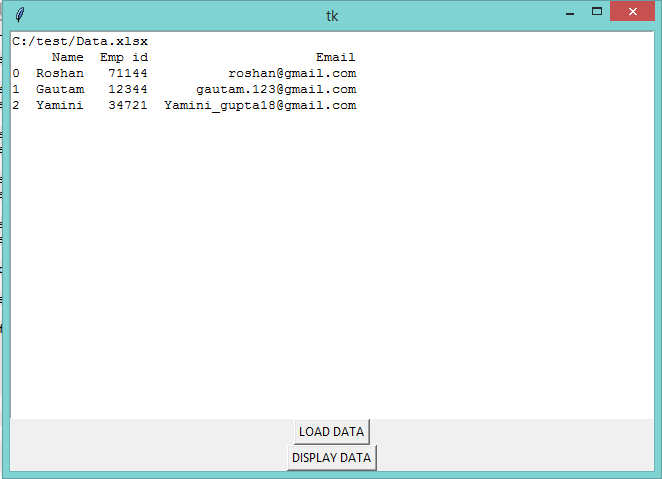
Load and Display Data (Excel , text or CSV) in Python with Gui form.

In this section we will be creating a dialog based gui to load data from EXCEL or CSV  and display the information on same view.


Lib Requirement: Tikinter

Code:

try:
    # Python 2
    import Tkinter as tk
    import ttk
    from tkFileDialog import askopenfilename
except ImportError:
    # Python 3
    import tkinter as tk
    from tkinter import ttk
    from tkinter.filedialog import askopenfilename

import pandas as pd

# --- classes ---

class MyWindow:

    def __init__(self, parent):

        self.parent = parent

        self.filename = None
        self.df = None

        self.text = tk.Text(self.parent)
        self.text.pack()

        self.button = tk.Button(self.parent, text='LOAD DATA', command=self.load)
        self.button.pack()

        self.button = tk.Button(self.parent, text='DISPLAY DATA', command=self.display)
        self.button.pack()

    def load(self):

        name = askopenfilename(filetypes=[('CSV', '*.csv',), ('Excel', ('*.xls', '*.xlsx'))])

        if name:
            if name.endswith('.csv'):
                self.df = pd.read_csv(name)
            else:
                self.df = pd.read_excel(name)

            self.filename = name

            # display directly
            #self.text.insert('end', str(self.df.head()) + '\n')

    def display(self):
        # ask for file if not loaded yet
        if self.df is None:
            self.load()

        # display if loaded
        if self.df is not None:
            self.text.insert('end', self.filename + '\n')
            self.text.insert('end', str(self.df) + '\n')


# --- main ---

if __name__ == '__main__':
    root = tk.Tk()
    top = MyWindow(root)
    root.mainloop()


Output:
 Form:

 Select the format:
 Select the file:
 Click on Display Data:


Thursday, October 18, 2018

How to Read Excel in Python using Pandas

Nowadays the very first python interview question asked by the company is "How to read data from Excel"

In the below example we have an simple example to read the data from excel and show in python.


First, we need to have an excel sheet , in  my case i have below one stored in c:/test/ location


Second, Now we just need Pandas lib to read all data into data frame for which we have code as below.

# importing Panda library and using as 'pd'

import pandas as pd 

#reading excel sheet in data frame in python

df=pd.read_excel("C:\\test\\Data.xlsx")

#Displaying data set 'Top 5 row

df.head()


Output


Wednesday, October 17, 2018

Screen Monitoring / Task monitoring on Winodows 10/8/7

In this below code execution you will be able to record every step on window.


Language: Python

Lib: Win32 , OS, Tikinter, datetime, time  & Openpyxl


import win32gui
import time
import datetime
import openpyxl
import os
import tkinter as tk
from tkinter import *
w=win32gui
from openpyxl import Workbook
print("\t Copyright Reserved: @Rohit Kankhedia #.com   \n\n \t\t india \n\t This window will autoclose after 30 sec session \n\t your resule will be exported in C:/te/")
home_dir = ('C:\Te')       
if not os.path.isdir(home_dir):
    os.makedirs(home_dir)
    #print("Home directory %s was created." %home_dir)
book = Workbook()
sheet = book.active
value_1=[]
value_2=[]
val=str(w.GetWindowText (w.GetForegroundWindow()))
sheet["B1"].value="Task"
sheet["C1"].value="Time"
sheet["D1"].value="DateTime_IF_Change"
sheet["E1"].value="Time_IF_Change"
sheet["F1"].value="Time_Spent on Task"
def Start1():
        #counter_label(label)               
        for i in range(2, 30):
            time.sleep(1)
            #if str(w.GetWindowText (w.GetForegroundWindow()))!=NewTask[i]:
             #   NewTask[i]=str(w.GetWindowText (w.GetForegroundWindow()))
              #  NewTime[i]=datetime.datetime.now()
            value_1.append(str(w.GetWindowText (w.GetForegroundWindow())))
            value_2.append(datetime.datetime.now())
           
            #OldTime[i]=datetime.datetime.now()
            #print(str(w.GetWindowText (w.GetForegroundWindow())),datetime.datetime.now())
       
        for i in range(2,28):
            print(value_1[i],value_2[i])
            if i==2 or i==27:
                sheet["D"+str(i)].value=value_2[i]
               
                sheet["E"+str(i)].value='=HOUR(D{0})&":"&MINUTE(D{0})&":"&SECOND(D{0})'.format(i)
                if i!=2 :
                  sheet["F"+str(i)].value=value_2[i]-temp1
                temp1=value_2[i]
            if value_1[i]!=value_1[i-1]:
                #temp=value_1[i]
                sheet["D"+str(i)].value=value_2[i]
                sheet["E"+str(i)].value='=HOUR(D{0})&":"&MINUTE(D{0})&":"&SECOND(D{0})'.format(i)
                sheet["F"+str(i)].value=value_2[i]-temp1
                temp1=value_2[i]
               
           
            sheet["B"+str(i)].value=value_1[i]
            sheet["C"+str(i)].value=str(value_2[i])
           
        book.save("c:\\Te\\Track_R.xlsx")
        root.destroy()
      
root = tk.Tk()
root.title('Time-12-Track')
time1 = ''
clock = Label(root, font=('times', 20, 'bold'), bg='green')
clock.pack(fill=BOTH, expand=1)
def tick():
    global time1
    # get the current local time from the PC
    time2 = time.strftime('%H:%M:%S')
    # if time string has changed, update it
    if time2 != time1:
        time1 = time2
        clock.config(text=time2)
    # calls itself every 200 milliseconds
    # to update the time display as needed
   # could use >200 ms, but display gets jerky
    clock.after(200, tick)
tick()
tk.Label(root,
   text="\t Copyright Reserved: @Rohit Kankhedia #BT.com   \n\n\t BT india \n\t This window will autoclose after 30 sec session \n\t your resule will be exported in C:/te/",
   fg = "red",
   font = "Times").pack()
button = tk.Button(root, text='Start', width=25, command=Start1)
button.pack()
counter = 0
button1 = tk.Button(root, text='Stop', width=25, command=root.destroy)
button1.pack()


root.mainloop()


Tool Screen:


JOB in 2019

Automated - Digital One o One Meetings- An Idea

                                            Automated - Digital One o One Discussion                                                       ...